Wishlist on Steam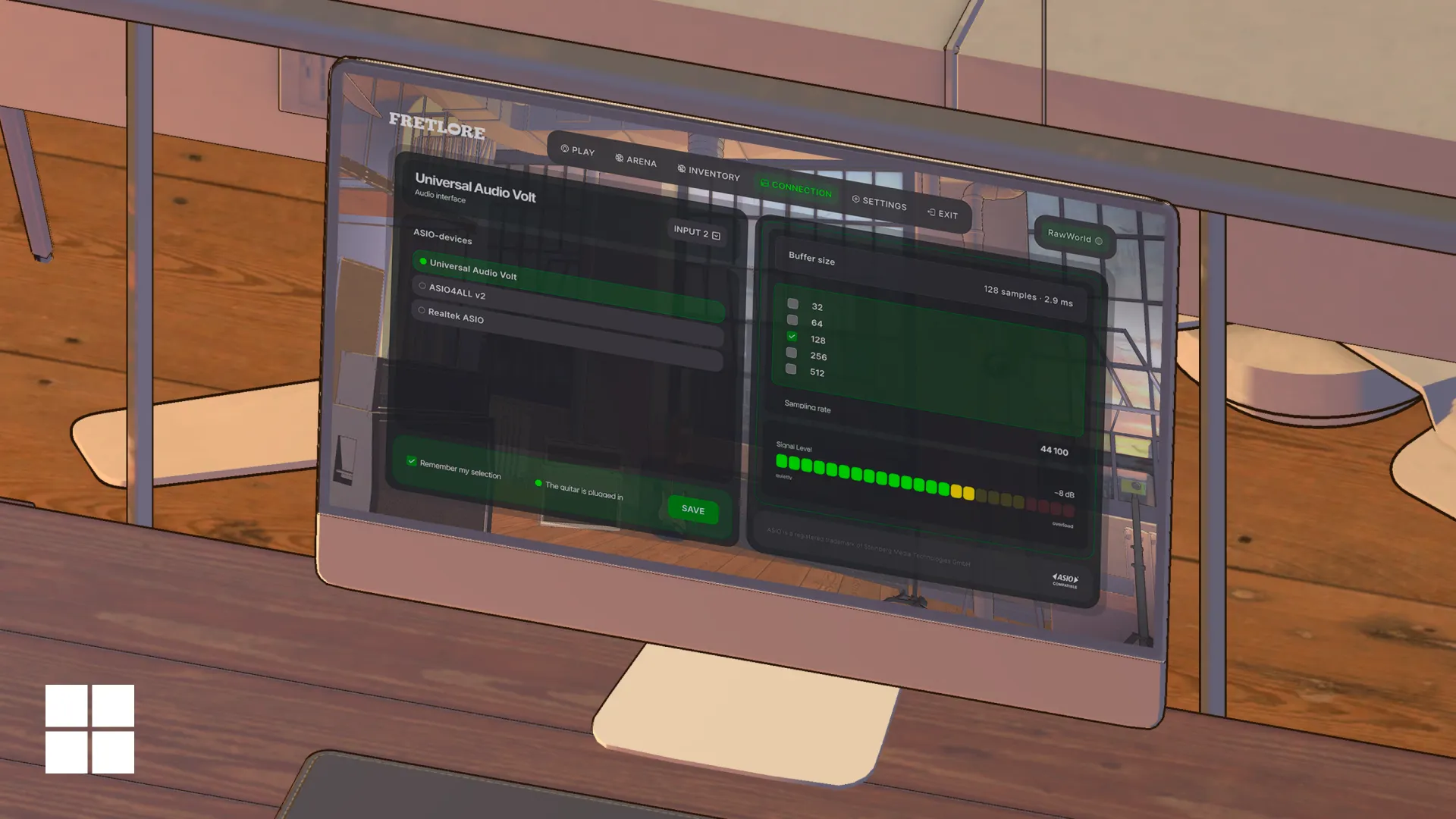
Connect an electric guitar or bass to a Windows PC through an audio interface, check the signal, and set up sound in a digital audio workstation (DAW) or Fretlore.
What you'll need
- An electric guitar or bass.
- A USB audio interface with an INST/Hi-Z instrument input and an ASIO driver for your version of Windows.
- An instrument cable with two 6.35 mm TS plugs and a USB cable for the interface.
- Wired headphones, with a stereo adapter if needed.
An audio interface, also called an external sound card, sends your guitar's signal to the computer and plays sound through your headphones. You don't need a physical amp to play with software processing: an amp simulator in the app takes its place.
Examples include the Focusrite Scarlett Solo/2i2, Audient iD4 MKII/iD14 MKII, MOTU M2, SSL 2 MKII, Universal Audio Volt 1/2, Arturia MiniFuse 1/2, Behringer UMC202HD/UMC204HD, M-Audio M-Track Solo/Duo, and IK Multimedia AXE I/O ONE. Another model with the right input and a suitable driver can work too.
Prepare your audio interface
- Turn down your headphones and speakers. Set the input Gain to its minimum.
- Open Downloads or Support on the manufacturer's website and find your model and generation. Install the driver for your version of Windows, following the connection order in the instructions.
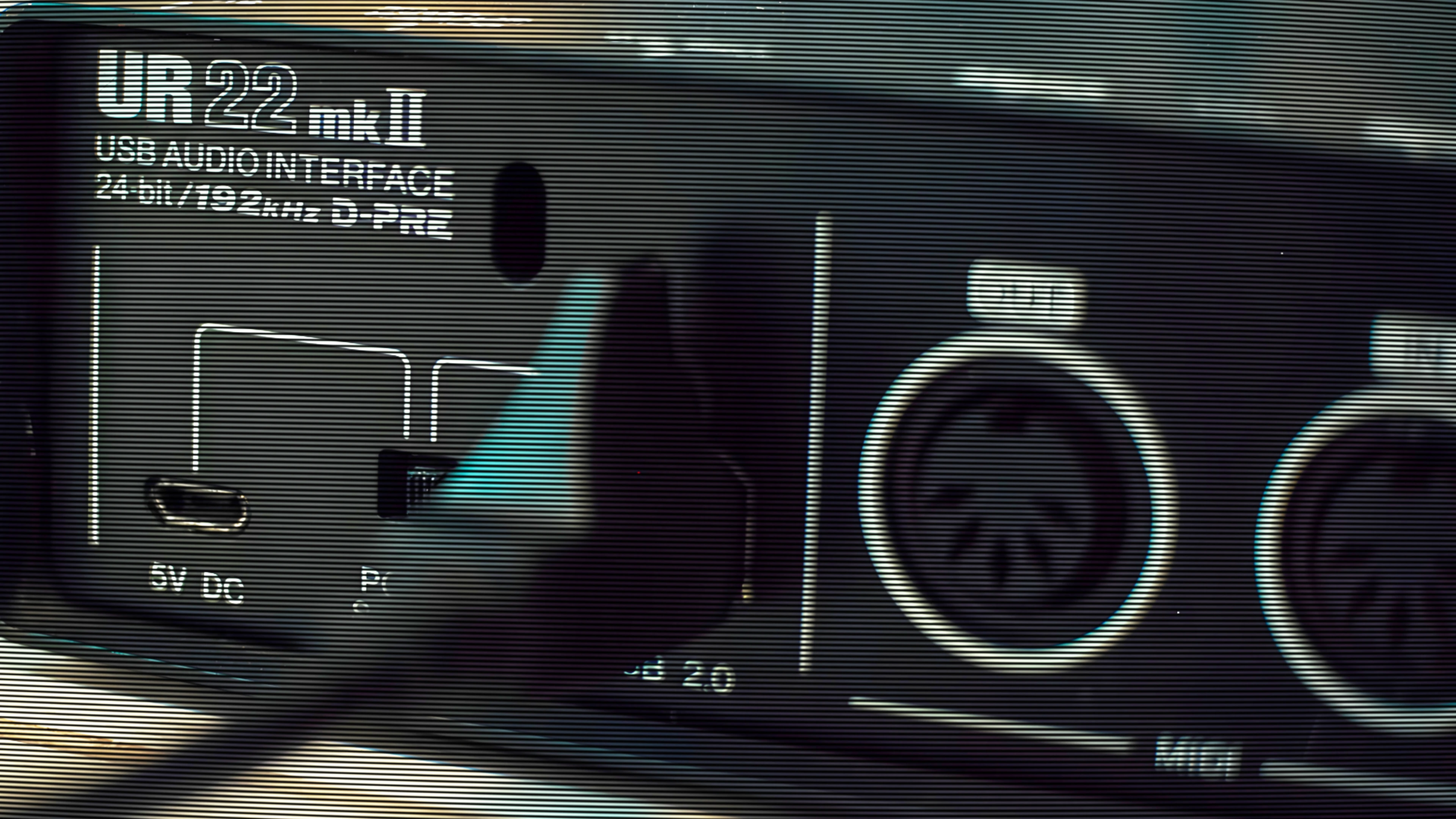
- Connect the interface to your computer with a USB cable that supports data transfer. Connect a separate power supply if the device requires one.
Connect your instrument
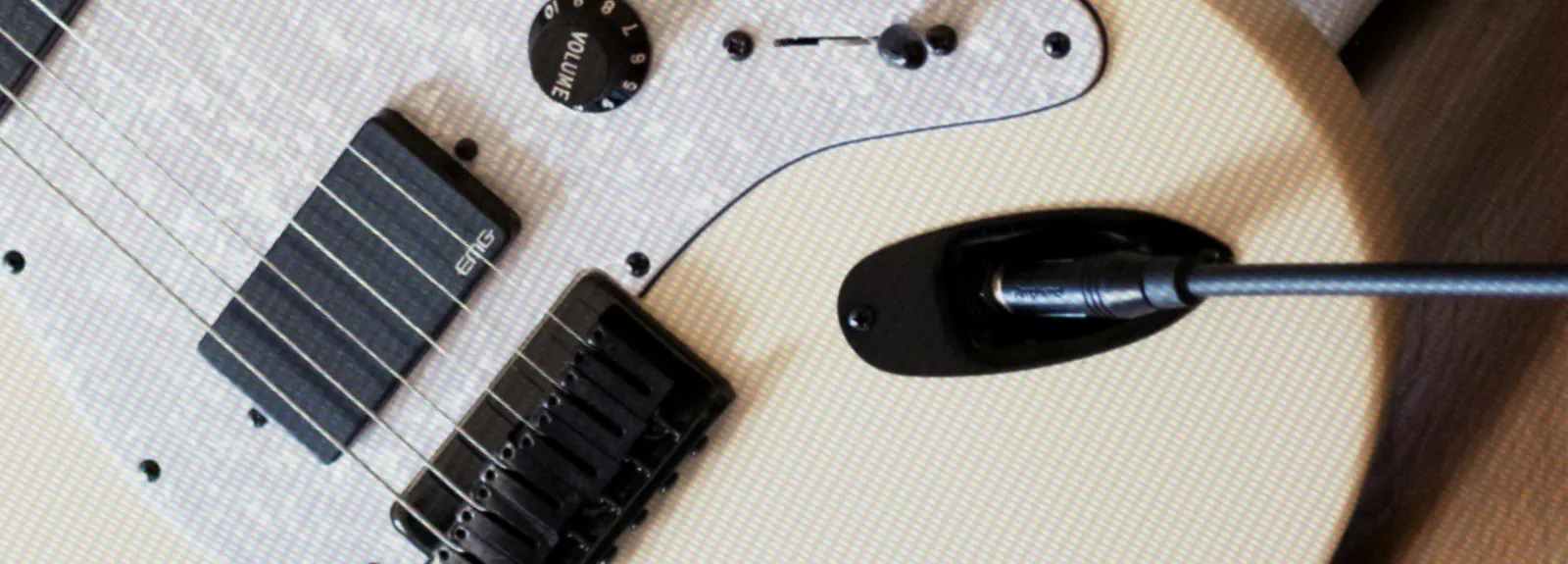
Hold the plug by its body and insert one end of the instrument cable fully into the guitar or bass output jack. Turn up the volume on your instrument.
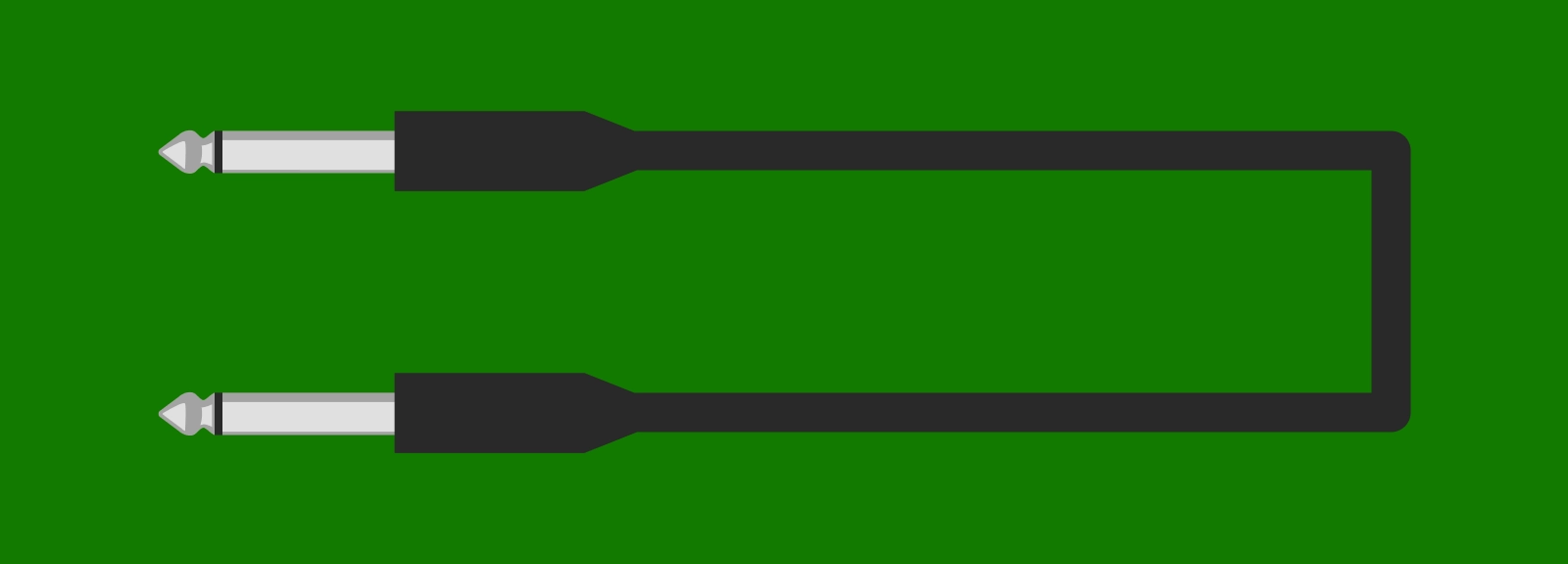
Plug the other end into an Instrument / INST / Hi-Z input on the interface. If there's a LINE/INST switch, select INST. On an XLR/jack combo input, the plug goes into the center opening; make sure that input supports instrument mode.
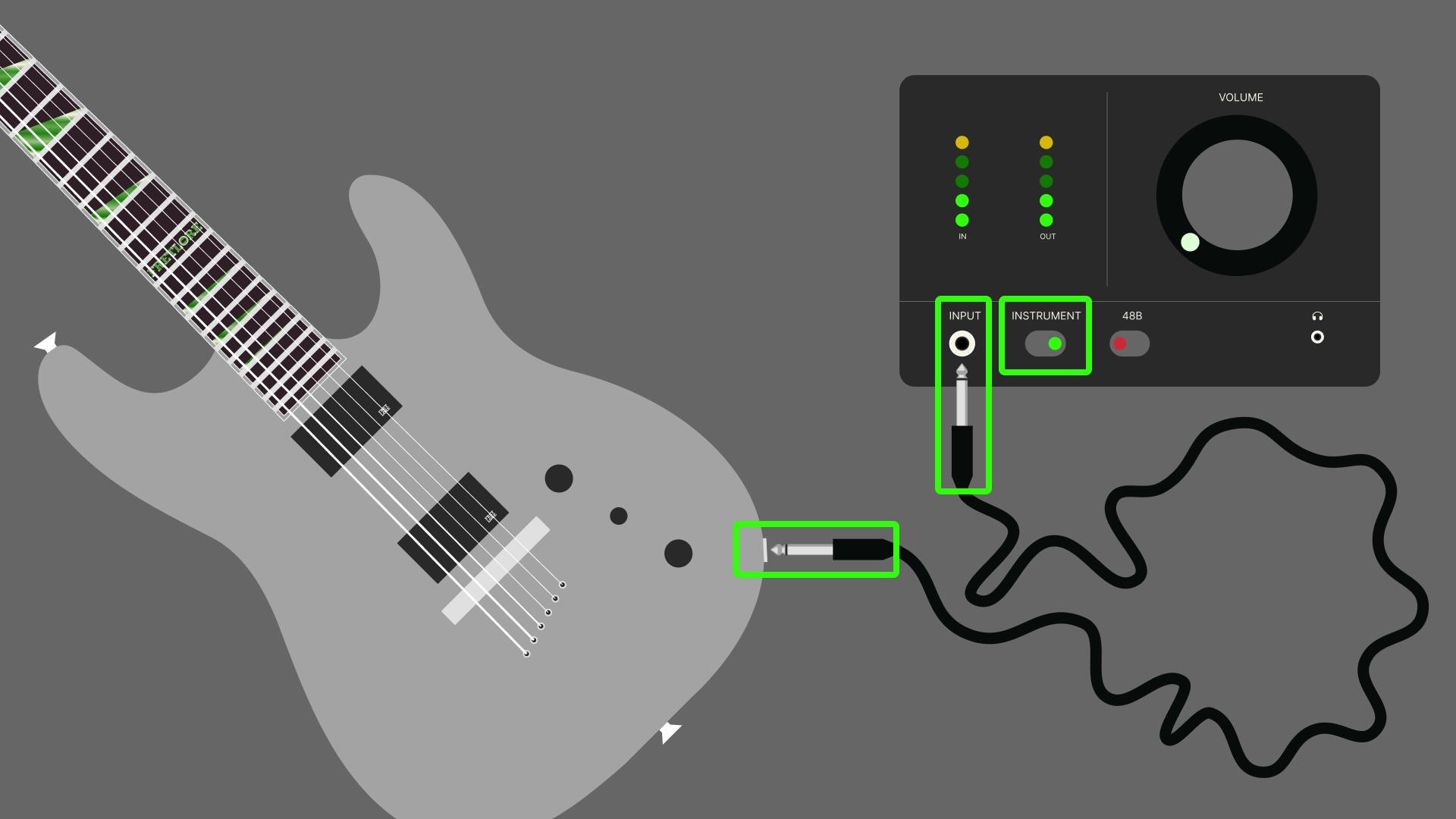
Line Out, Monitor Out, and Phones are outputs. 48V phantom power isn't needed for a standard guitar connection.
Connect your headphones
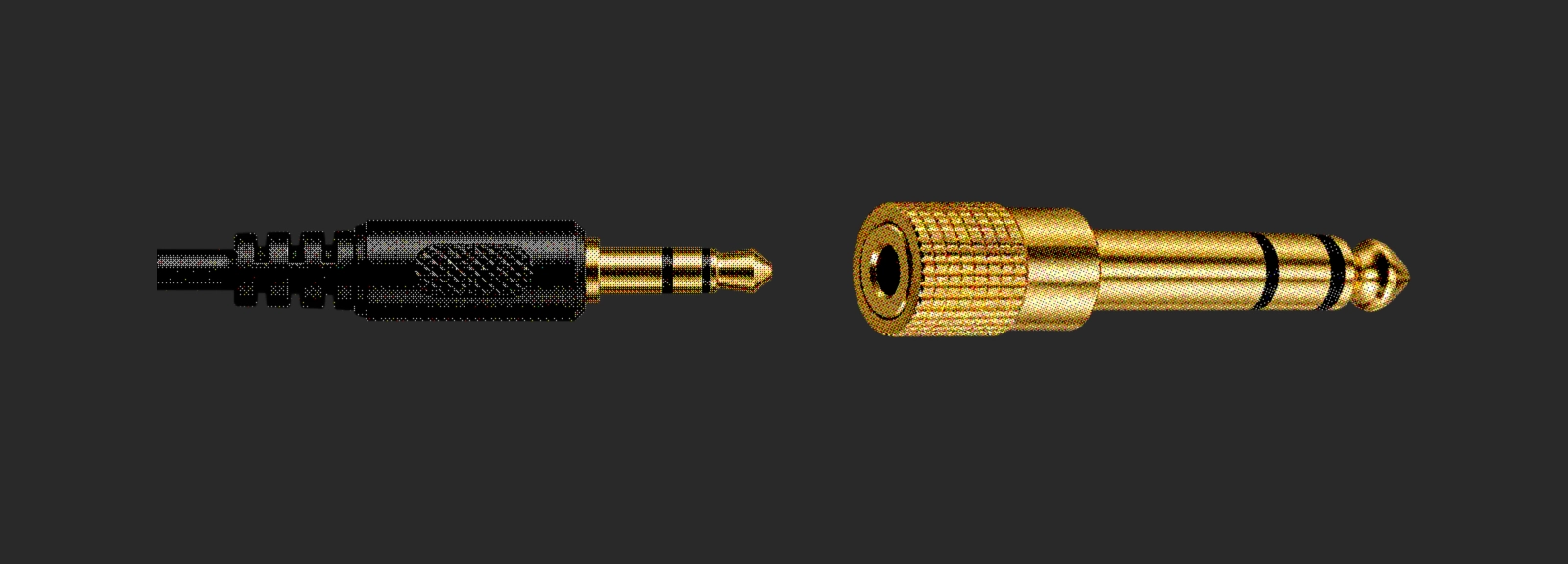
Connect your headphones to Phones or the jack marked with a headphone symbol. If the headphone plug is 3.5 mm and the interface's output is 6.35 mm, you'll need a stereo adapter. This depends on the headphone and interface models.
Set the level and check the sound
- Play your loudest notes or chords while gradually raising the Gain for the connected input. Watch the level indicator and avoid overloading the input.
- If the interface has Direct Monitor, turn it on. On models with an Input/Playback balance, turn the control toward Input.
- Gradually raise the headphone volume. You should hear your instrument.
Gain controls the incoming signal level; headphone volume controls how loud you hear it. Direct monitoring helps you check the connection without an app. If your interface doesn't support it, continue with the app setup.
Check Windows playback (optional)
This checks ordinary playback through the interface. You can skip this step.
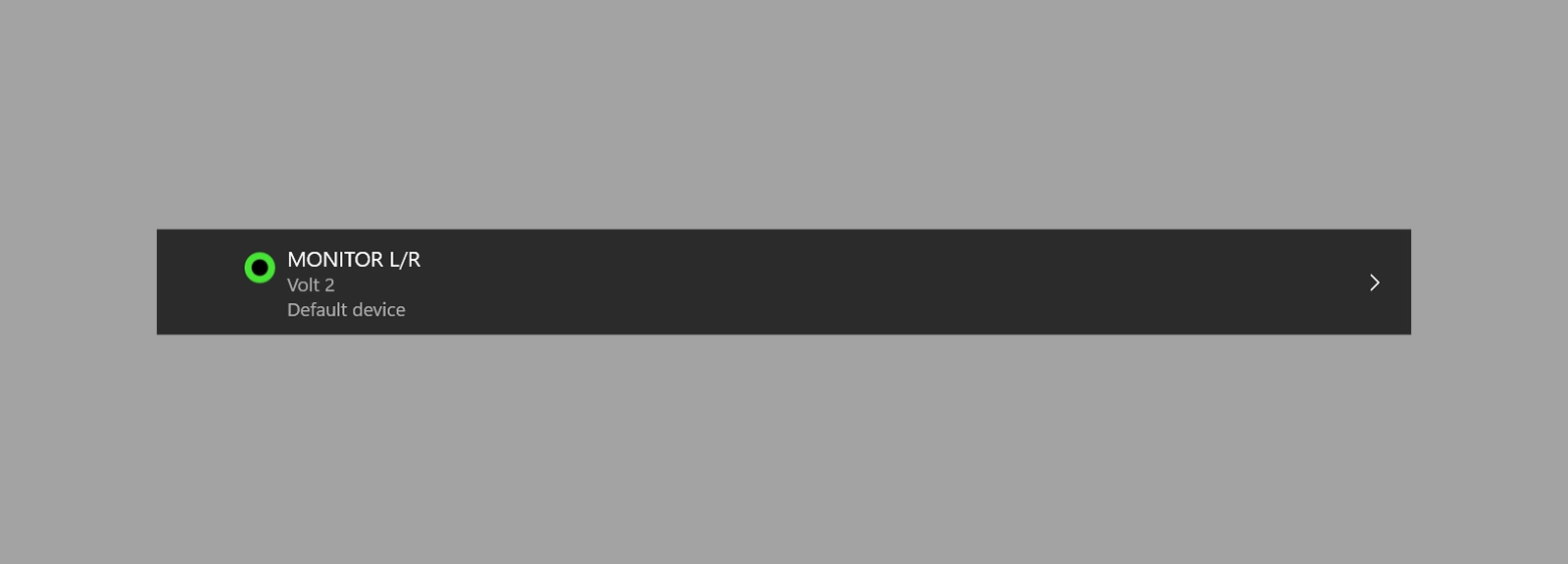
Open Settings from Start, then select System and Sound. Choose the interface as your output device. In Windows 11, you can also open the output list from the volume panel.
If your interface has an Input/Playback balance, turn it toward Playback/Host/DAW and play a familiar recording. You should hear it through the headphones connected to the interface. Choosing a Windows output doesn't replace selecting the ASIO driver in your DAW or Fretlore: configure the app separately.
Set up your DAW
A DAW is a music application for recording and processing sound. We'll use FL Studio as the example.
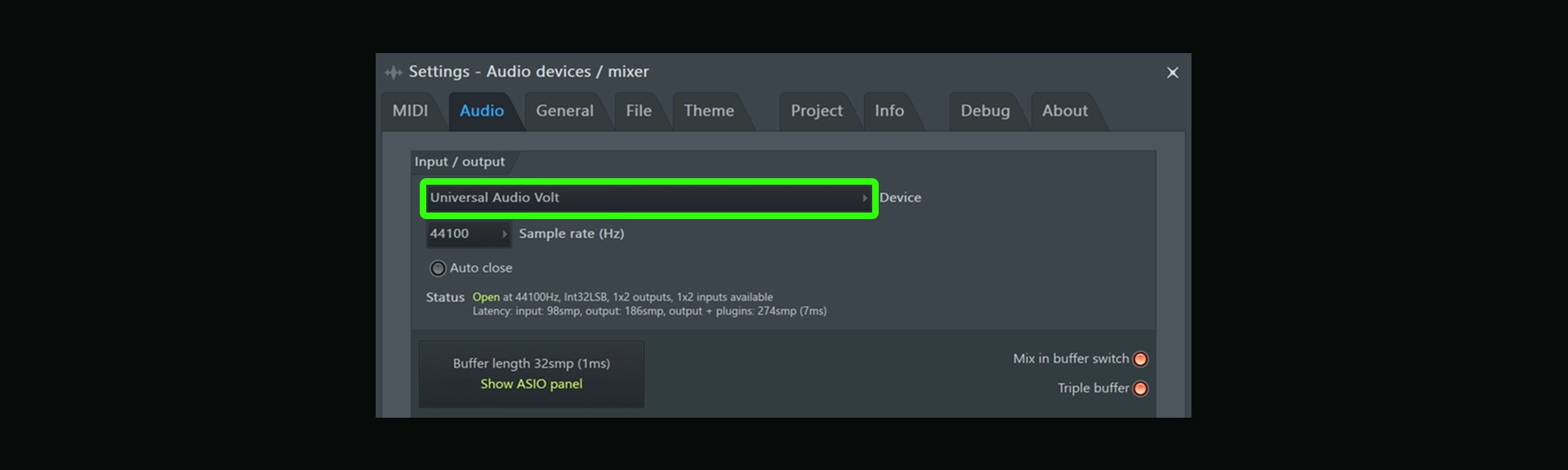
Open Audio settings from the Options menu. In the Input / output section, select your interface's ASIO driver in Device. The screenshot shows Universal Audio Volt selected.
Show ASIO panel opens the driver settings. If the sound lags behind your picking, reduce Buffer size: try 256, then 128 samples, if available. If you hear crackling or dropouts, increase the buffer until playback is stable. The smallest number isn't always the best choice.
Here at Fretlore, we've tested the Volt 2 in the game, and it worked without issues on our setup. It's one of many suitable interfaces; an expensive studio model isn't essential for getting started. Setup instructions for Volt are available from Universal Audio.
The interface's preamp and converters affect noise, headroom, and signal fidelity. A quick response also matters when playing through an amp simulator. Total latency depends on the interface, driver, buffer, and sample rate; your computer and the processing load from effects determine how small a buffer can run reliably. The price of the interface alone doesn't tell you how responsive the whole system will be.
Now choose where the signal enters the Mixer:
- Press F9 to open the Mixer and select an unused track. Our screenshot uses Insert 1.
- Click the input field above the effects slots. It shows (none) until you select an input.
- Select your interface's individual mono input. The Volt 2 has two inputs; our guitar is plugged into the first, so we select INPUT 1. If you select the stereo pair INPUT 1 – INPUT 2, the first input becomes the left channel and the second becomes the right. A guitar plugged into just one of them will be heard in one ear. Selecting the individual mono input lets you hear it in both.
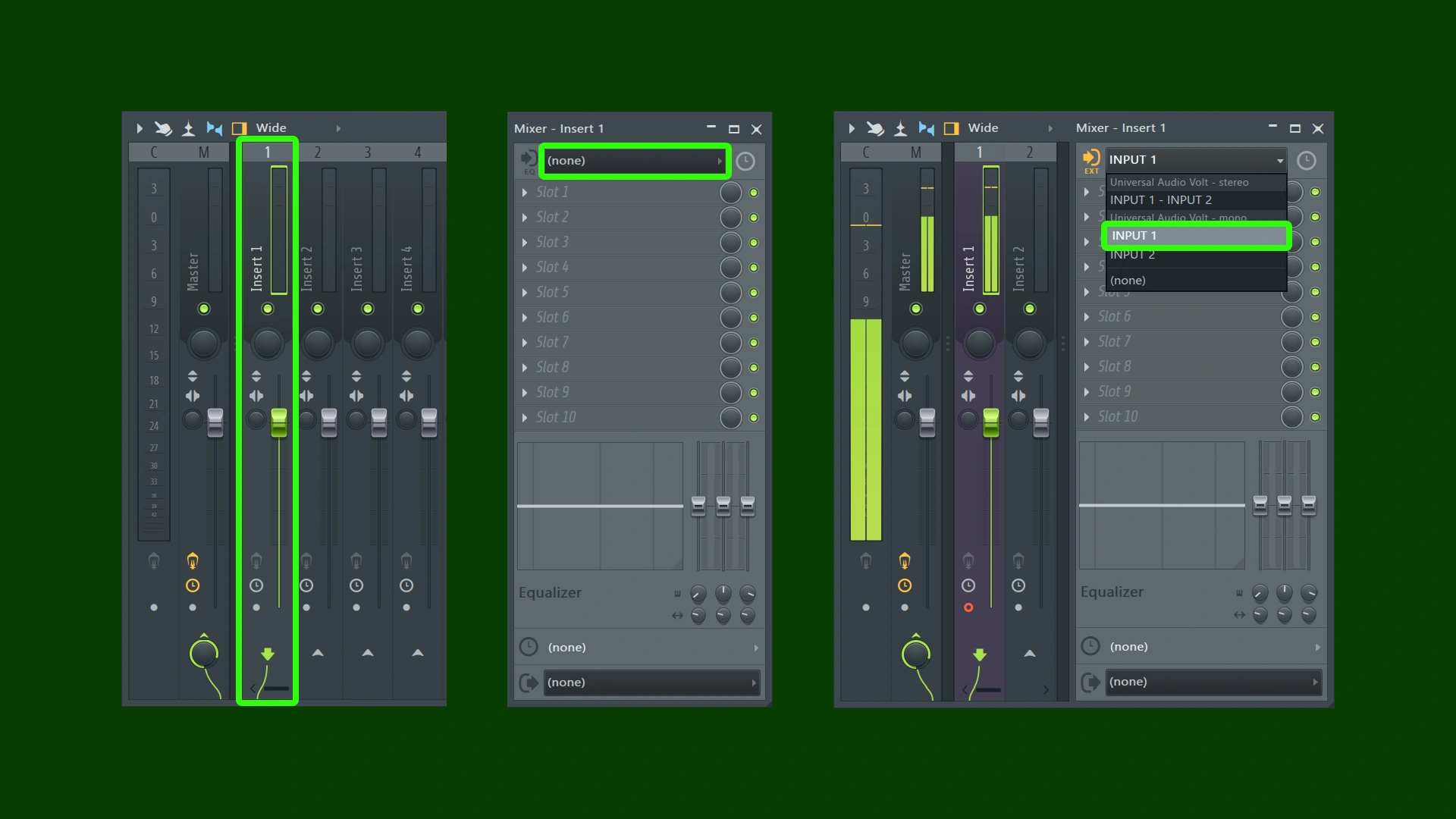
Play a few notes: the selected track's level meter should respond. This confirms that the signal is reaching FL Studio. The interface's Gain sets the input level; the track fader and headphone volume control adjust your listening volume.
For an amp simulator or effects, add the appropriate plug-in to an effects slot on this track. Enabling monitoring alone doesn't add processing. See the FL Studio reference for more detail.
Connect in Fretlore
Fretlore is our game for real electric guitar and bass. It recognizes the notes you play and uses them in gameplay. You can slow down songs and exercises, repeat sections, and work through them with feedback on notes and timing.
Amps, effects, and cabinets are built into the game. You can play through a ready-made signal chain or build your own. The default settings are designed for a quick start: connect your instrument, check the signal, and play.
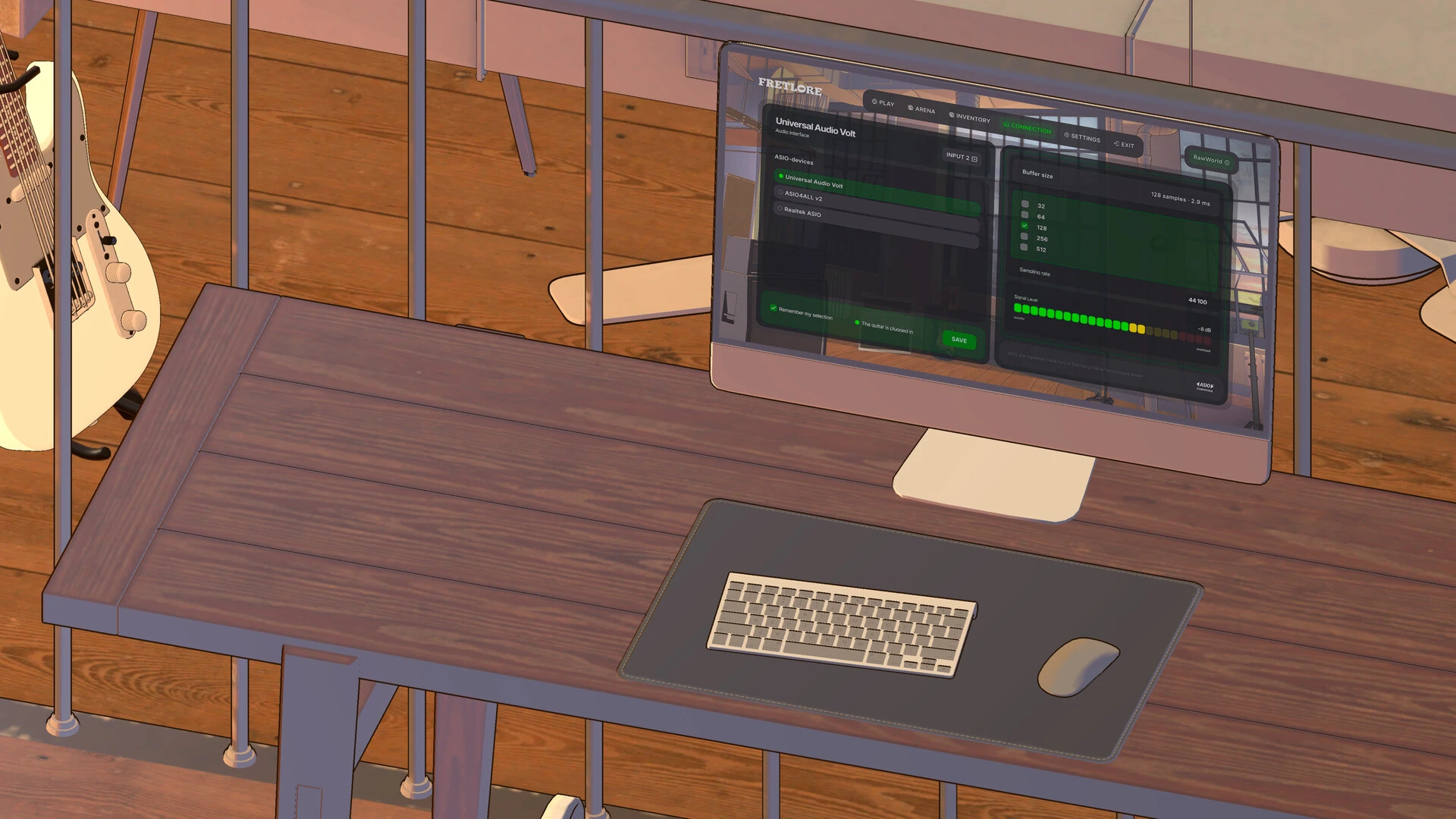
Open CONNECTION from the main menu. Available audio devices and input selection are on the left. The Signal Level meter and Buffer size setting are on the right. If the right device and input are already selected and the meter responds when you play, there's no need to change the settings.
If no device is selected, or you've accidentally disconnected the USB cable:
- Connect the interface and select it under ASIO-devices. In INPUT, select the input your instrument is plugged into.
- Play a few notes and check Signal Level. If the signal is too weak or overloaded, adjust the interface's Gain.
- Adjust Buffer size if needed: reduce it for noticeable delay, or increase it for crackling and dropouts.
- Check Remember my selection and click SAVE to keep your choice.
Fretlore is in development: the Connection screen and settings may change.
If something isn't working
- No signal — check the cable, instrument volume, INST/Hi-Z mode, and selected input. Check the battery in an active instrument. If the interface shows a signal but the app doesn't, check the app's driver and input.
- There's a signal but no sound — check input monitoring, the app's output, headphone volume, and the adapter. If the interface has an Input/Playback balance, check its position.
- Doubled sound or missing effects — turn off Direct Monitor when listening through the app; enable the appropriate plug-in for processing.
- Sound in one ear — check the plug, stereo adapter, mono input selection, and panning.
- Crackling or dropouts — check for input overload and increase the buffer if the input level is fine. Close other apps using the interface.
After playing, turn down the volume before disconnecting. Unplug the cable from an instrument with active electronics to avoid draining its battery.